Screenshots
High-quality screenshots are essential for your store listing. Capturing them in VR requires specific techniques.
Meta Quest Developer Hub
Use Meta Quest Developer Hub for consistent screenshots:
- Connect device: Connect Quest via USB and find your device under "Device Manager"
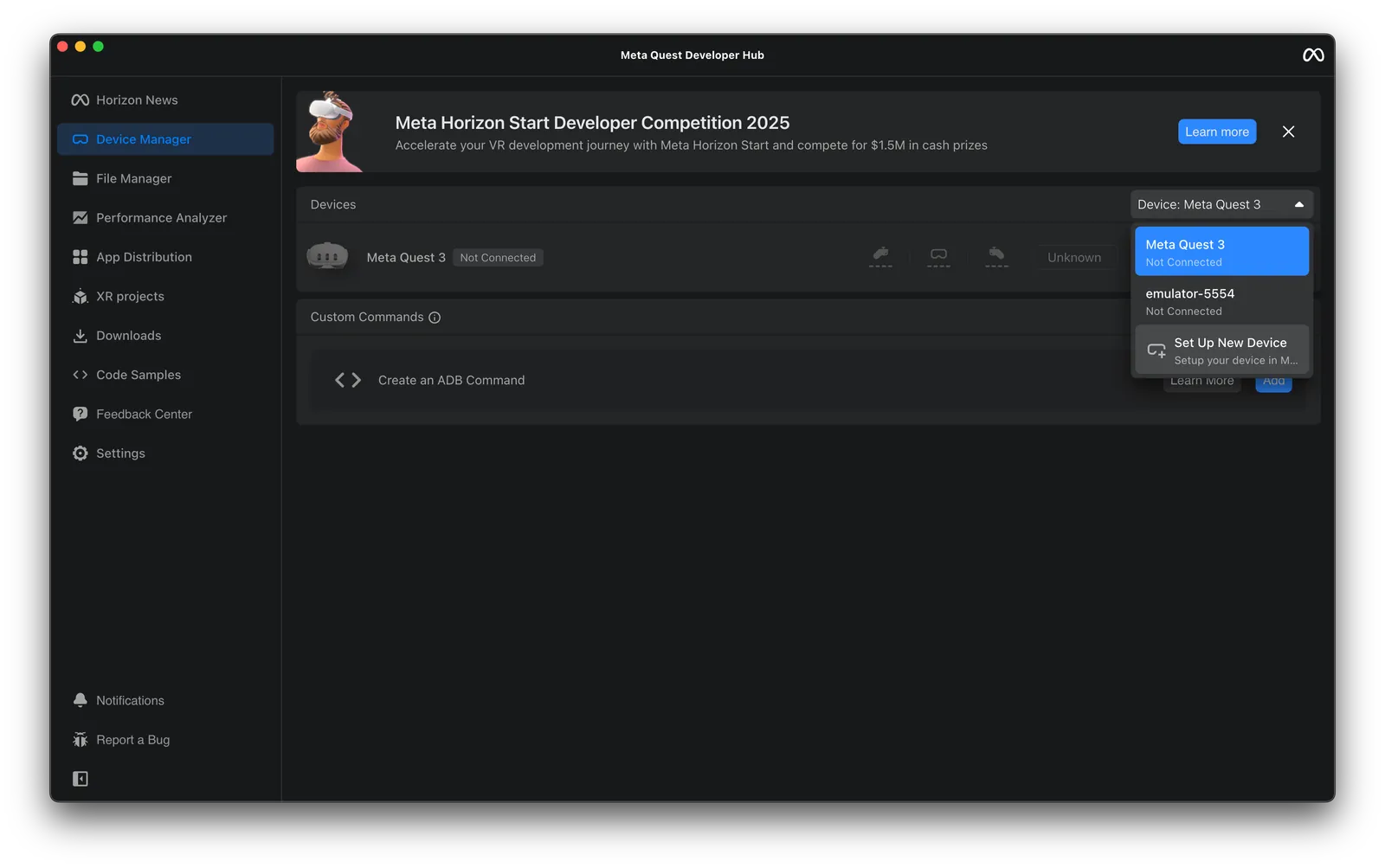
- Cast Device: Enable casting to see live viewport
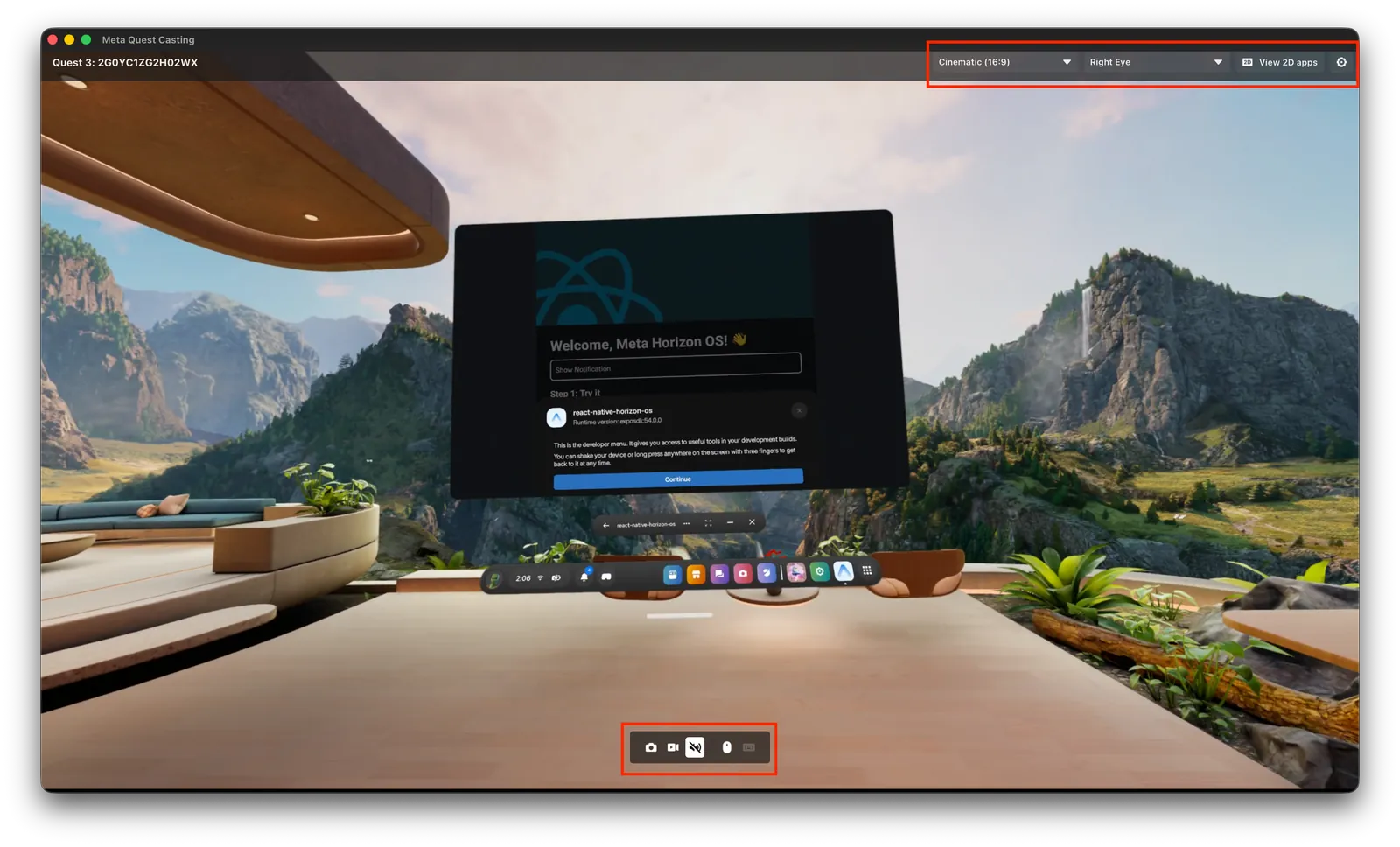
- Capture: Use screenshot tools in the cast view
2D App View
For best results, use the 2D app view:
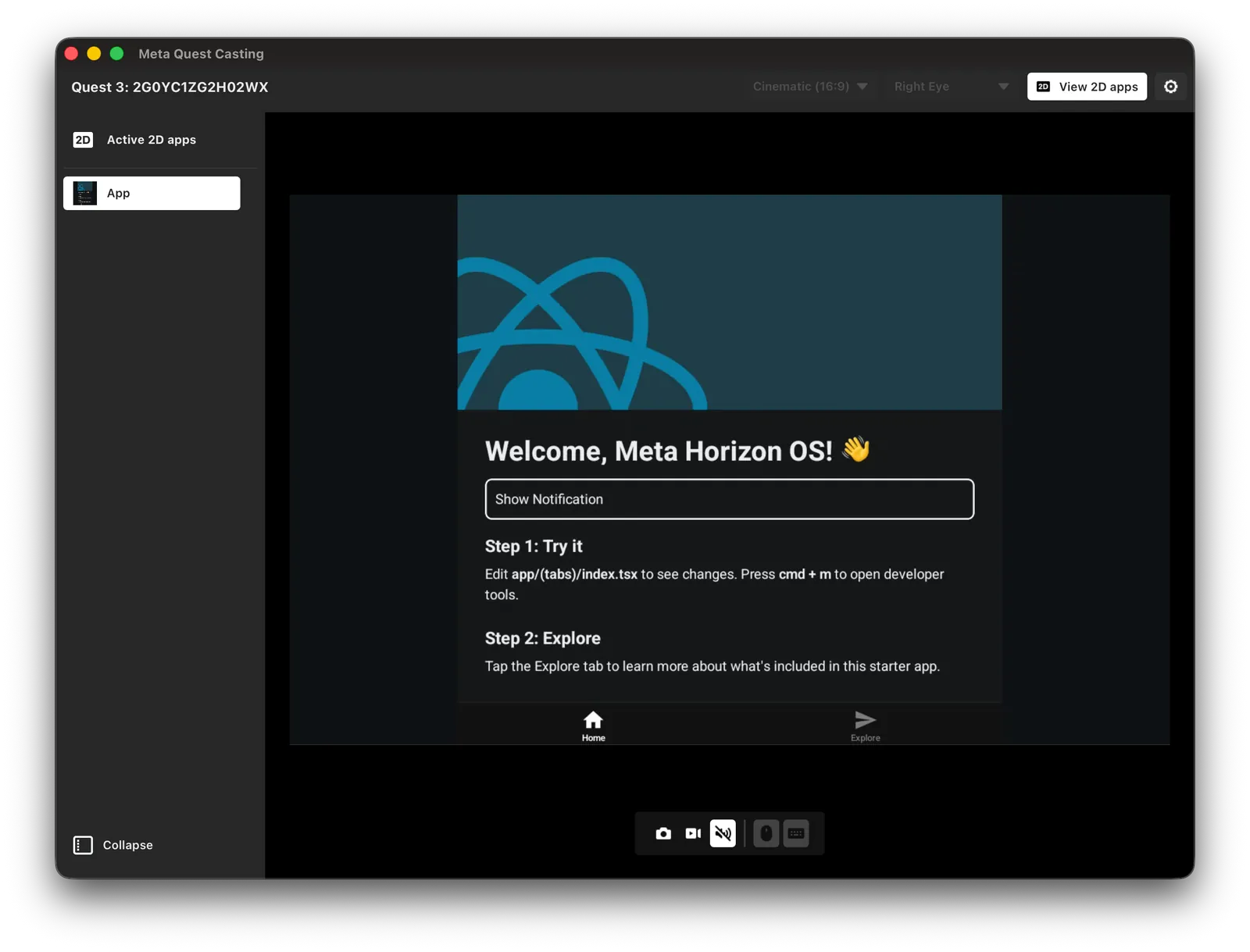
- Isolated interface: Captures only your app UI
- Clean background: Can be embedded in promotional backgrounds later
- Consistent framing: Easier to align and compose
Best Practices
Composition
- Fill viewport: Ensure app fills most of the captured image
- Clean background: Enable Immersive Home to remove clutter
- Well-lit: Keep environment well-lit for better quality
Alignment
- Consistent positioning: Keep app in the same position across screenshots
- Proper framing: Avoid cutting off important UI elements
- Preview first: Check composition before final capture
Styling
- Promotional backgrounds: Add backgrounds in post-production
- Consistent style: Match style across all screenshots
- Clear text: Ensure UI text is readable
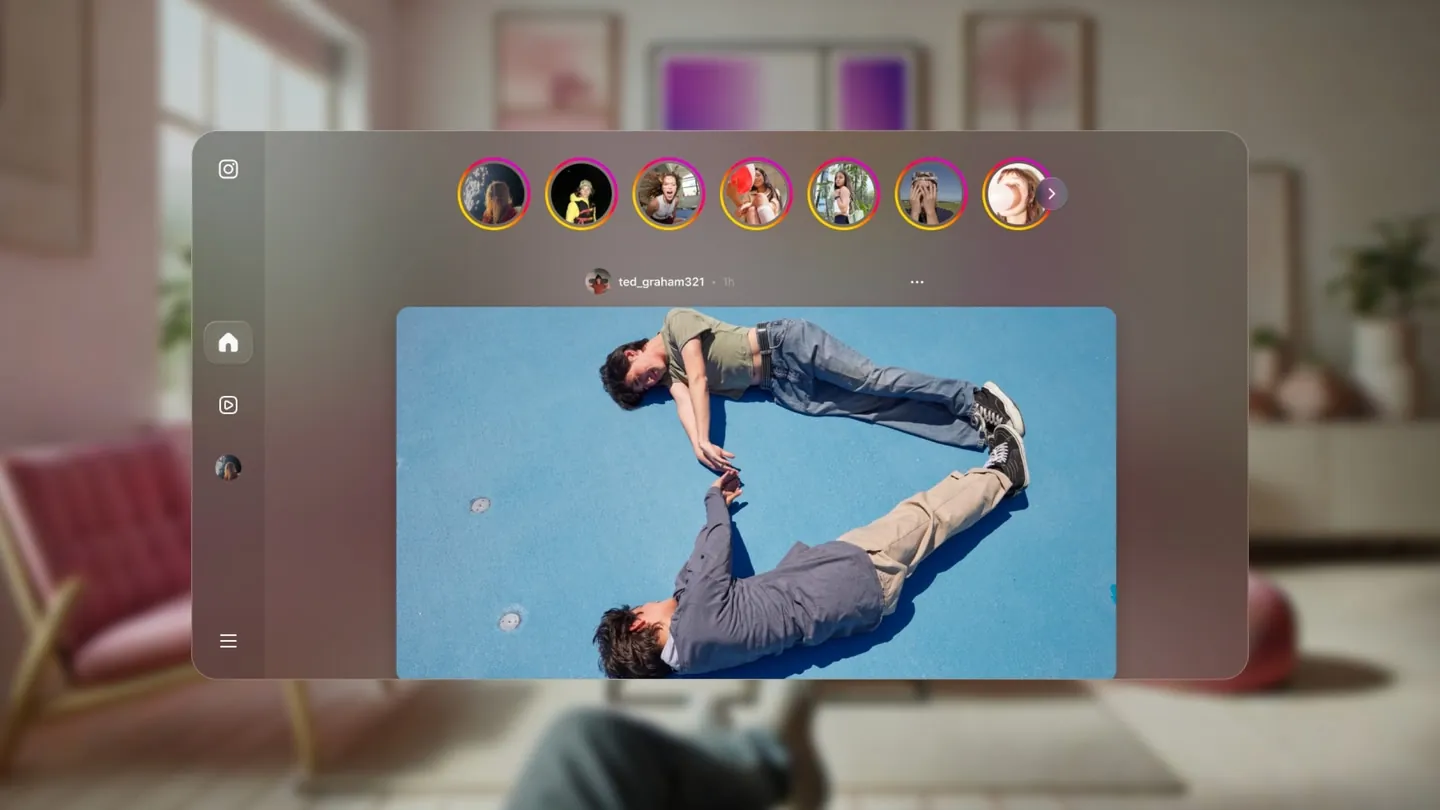
Inspiration
Look at successful Quest apps for inspiration:
Guidelines
Follow Meta's asset guidelines for:
- Required formats
- Dimensions
- File sizes
- Content requirements
Tools
- Meta Quest Developer Hub: Primary tool for capturing
- Image editing: Photoshop or similar for post-processing
- 2D app view: Best option for clean captures
Meta Spatial Simulator
Meta Spatial Simulator (Beta) allows testing 2D panel apps directly from Android Studio without a physical device. This can be useful for capturing screenshots during development.